
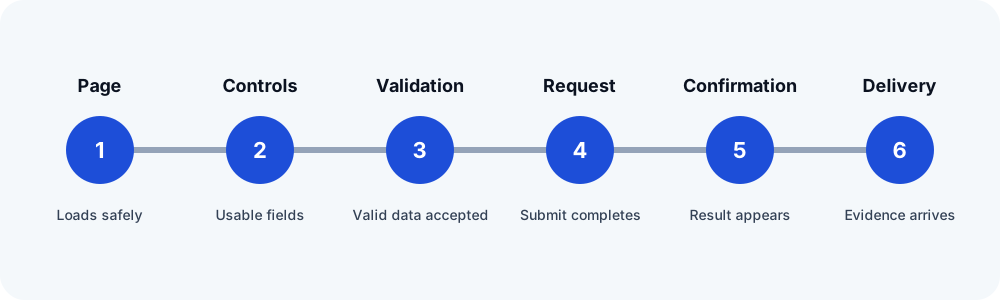
First identify the last confirmed step
Open the public form, use authorized synthetic data, and submit it once. If validation never clears, the button remains obstructed, an AJAX request fails, or no response message appears, stay on the browser side of the investigation. Contact Form 7's own documentation treats AJAX behavior and configuration errors as separate troubleshooting areas.
If the response message indicates success, record that result and continue. It supports the fact that the configured front-end path completed. It does not establish that WordPress handed a message to a mail server or that the destination accepted it.
Review the Contact Form 7 Mail tab
- Confirm the To field contains the intended valid mailbox.
- Use a From address belonging to the website's domain. Put the visitor address in Reply-To when replies should go to the submitter.
- Check every mail-tag against the current form fields and review any configuration warnings.
- If Mail (2) is used, remember that it is an additional template and is sent only after the primary mail succeeds.
- Inspect attachments and message headers for stale or invalid tags.
These checks follow Contact Form 7's current mail setup guidance. Keep the official documentation open because field behavior can change across plugin versions.
Separate generation from delivery
Check an authorized mail log or test sink for the unique marker. A log showing that WordPress attempted or handed off the message narrows the problem but may still stop short of mailbox receipt. If there is no mail event, investigate the form configuration, WordPress hooks, spam decision, or server error. If a handoff exists but receipt does not, investigate the sender identity, SMTP provider, DNS authentication, rejection, quarantine, spam folder, or routing at the recipient.
Check conflicts without damaging production
Reproduce on a safe staging environment before disabling plugins or changing the theme on a live client site. Preserve the production configuration, change one variable at a time, and retest with a new marker. Do not expose submitted values or credentials in screenshots, tickets, or logs.
Escalate with useful evidence
Provide the plugin and WordPress versions, public symptom, redacted configuration, timestamp, unique test marker, browser console or request error, and the last confirmed mail step. State whether the failure occurs for every recipient and whether other WordPress mail works. This gives the host, mail provider, or plugin support a narrower question than “the form is broken.”
Related FormRook guides
Official sources reviewed
Reviewed 2026-10-13. Confirm the current vendor guidance before changing a production site.